QGIS plugin
The QGIS plugin represents the user interface (frontend) and it requires the aXqua program (backend) that runs tasks as separate processes next to QGIS. So both frontend and backend are required:
The plugin frontend alone has nothing to pass work to and requires the backend.
Install in the order below.
The plugin only looks for the program when a task is started, so it may be installed second.
Install QGIS
Download from qgis.org. QGIS 3.44 or newer is required, QGIS 4 included.
Follow the installer instructions.
Install the aXqua plugin (QGIS)
Open QGIS, then:
Go to Plugins > Manage and Install Plugins.
Search for aXqua, click Install Plugin.
Until the plugin is in the QGIS plugin repository, take the .zip from the releases page and use Install from ZIP.
Install the aXqua program (backend)
The aXqua program is published on PyPI, the package index of Python, and requires Python 3.10 or newer. pip installs it into a Python environment of its own, which keeps QGIS and aXqua updatable independently of each other. The recommended route is an environment from Miniforge:
Install Miniforge following the instructions on its website.
Open terminal (on Windows, the Miniforge Prompt) and enter:
mamba create -n axqua-env python=3.12
mamba activate axqua-env
pip install axqua
axqua --version
axqua --version printing a version (for example, axqua 1.0.1) confirms the installation. pip also installs the packages that aXqua requires (numpy, pandas, scipy, pyyaml, pyproj, shapely, geopandas, rasterio, gmsh, openpyxl, matplotlib), all of them from PyPI, which takes less than a minute on a fast internet connection.
Bayesian calibration requires the optional package HydroBayesCal:
pip install "axqua[calibration]".
Without Miniforge. On Linux and macOS, a Python 3.10 or newer that is already installed works as well (python3 --version shows the version). The module venv of Python creates the environment:
python3 -m venv ~/axqua-env
source ~/axqua-env/bin/activate
pip install axqua
axqua --version
On Debian, Ubuntu and Linux Mint, venv requires the package python3-venv (sudo apt install python3-venv). The program is then ~/axqua-env/bin/axqua.
Note
Linux computers without a desktop. The mesh generator gmsh requires graphics libraries of the operating system, also when it meshes without a window. A computer with a desktop has them. On a server or in WSL, the error libGLU.so.1: cannot open shared object file at the first meshing means that they are missing. On Debian, Ubuntu and Linux Mint, install them with:
sudo apt install libglu1-mesa libgl1 libxrender1 libxcursor1 libxfixes3 libxext6 libxft2 libfontconfig1 libxinerama1 libgomp1
Tip
HydroBayesCal installs PyTorch, which on Linux comes with the GPU libraries of NVIDIA (several gigabytes). The calibration does not require a GPU. Installing the CPU version of PyTorch first saves that space:
pip install torch --index-url https://download.pytorch.org/whl/cpu
pip install "axqua[calibration]"
Warning
Installing aXqua into the Python that ships with QGIS is possible but not recommended. pip may replace packages such as numpy that QGIS itself uses, and QGIS may then fail to start. The plugin runs the aXqua program as a separate process, so the program does not have to be in the Python of QGIS.
Upgrade the backend
To upgrade aXqua, and HydroBayesCal where Bayesian calibration is used, to the newest versions:
mamba activate axqua-env               # or: source ~/axqua-env/bin/activate
pip install --upgrade axqua
pip install --upgrade hydrobayescal
axqua --version
Check on the Configuration tab of the plugin then reports the new version. The plugin and the program are released together under the same version number, so upgrade the program also after an update of the plugin in QGIS. pip install axqua==<version> installs one particular version, for instance the version with which an earlier result was computed; the release history on PyPI lists all versions.
Install from the source code (development)
Developers of aXqua, and users who need a change that is not released yet, install the program from a copy of the repository instead. This route requires Git.
Note
Installing Git
Git is a version control system used to clone repositories, track changes, and keep local files synchronized with a remote repository.
Open a terminal and install Git using the package manager. On Debian, Ubuntu, or Linux Mint:
sudo apt update
sudo apt install git
On Fedora:
sudo dnf install git
For other distributions, see the Git installation instructions for Linux.
Download and run the Git for Windows installer. The installer includes Git Bash, a terminal for running Git commands. After installation, open Git Bash from the Start menu. PowerShell or Command Prompt users reopen the interface, so that it recognizes the newly installed Git executable.
Open Terminal and install Apple’s Command Line Tools, which include Git:
xcode-select --install
Follow the installation dialog to complete the setup. Alternatively, use Homebrew to install Git with:
brew install git
Verify the `git` installation
In terminal, PowerShell, or Git Bash, run:
git --version
A Git version number confirms that the installation is available. For detailed installation instructions and tutorials on cloning repositories, updating files, pushing changes, and collaborating with branches, see the hydro-informatics.com Git tutorials.
With Git available, open terminal and enter:
git clone https://github.com/sschwindt/aXqua.git
cd aXqua
mamba env create -f environment.yml
mamba activate axqua-env
pip install -e .
axqua --version
pip install -e . installs the program so that it runs from the copy, and git pull in the aXqua folder updates it. Repeat pip install -e . after an update, so that the version that the plugin reads is current. The copy also holds what the published package leaves out: the commented case template cases/case-template/, the scripts in scripts/, and the sources of this documentation.
Connect the plugin to the aXqua program
Back in QGIS:
Open the aXqua panel from the toolbar and click Check on the Configuration tab.
The plugin looks in three places, in this order: the path in aXqua > Settings, the variable
AXQUA_EXE, the system search path.Found: the panel reports the version and where it came from. Nothing else to do.
Not found: enter the path from Find the path of the installed program in Settings, then click Test.
Test reports the version that the path answers with, so a wrong path is caught here and not when a simulation is started.

The dialog aXqua > Settings with a correctly entered path. (1) The full path of the program, ending in envs/axqua-env/bin/axqua; the button … opens a file dialog instead. (2) Test reports the version that this path answers with.
Find the path of the installed program
If the plugin does not automatically identify the full path of the axqua program backend find it via terminal; activate the environment and ask the system where the program is:
mamba activate axqua-env
which axqua          # Linux, macOS
where axqua          # Windows
What it prints is the path to enter in the plugin:
Linux |
|
macOS |
|
Windows |
|
Warning
If the above commands do not print anything, the environment is not active, or
pip install axquadid not run in it.To find an environment without activating it,
mamba env listprints every environment with its folder. The program is then<folder>/bin/axqua(Linux, macOS) or<folder>\Scripts\axqua.exe(Windows).An environment created with
venvis the folder named inpython3 -m venv; the program is<folder>/bin/axqua, for instance/home/<user>/axqua-env/bin/axqua.
Important
This section only explains the very basic installation of the aXqua QGIS plugin (aka the frontend) and the required code behind the scenes (aka the backend). The next sections explain the installation of Simulation Software (TELEMAC and OpenFOAM), Plugin setup, and the installation of Postprocessors (ParaView and Visit DAV).
aXqua panel layout
After successful configuration, the panel shows tabs that follow the workflow: Configuration, Case Setup, Preprocessing, Simulations (with the sub-tabs Baseline (Telemac), OpenFOAM, Mesh convergence, and Morphodynamics), Calibration & validation, Postprocessing, Batch-processing. Help at the top right opens the documentation at the section of the tab that is showing, and Clean Up left of it frees disk space (Freeing disk space). Help opens a copy of the documentation built on this computer if there is one (bash docs/i18n/build_i18n.sh in a copy of the repository installed as in Install from the source code (development), Building the documentation), because it describes the installed version, and otherwise the published documentation at axqua.eu. It opens the German or the French pages when QGIS is set to German or French. A browser installed as a snap or Flatpak package (Firefox on Ubuntu, for example) cannot open files outside of the home folder; for a copy outside of it, Help opens the published documentation. The job list below the tabs is visible from every tab.
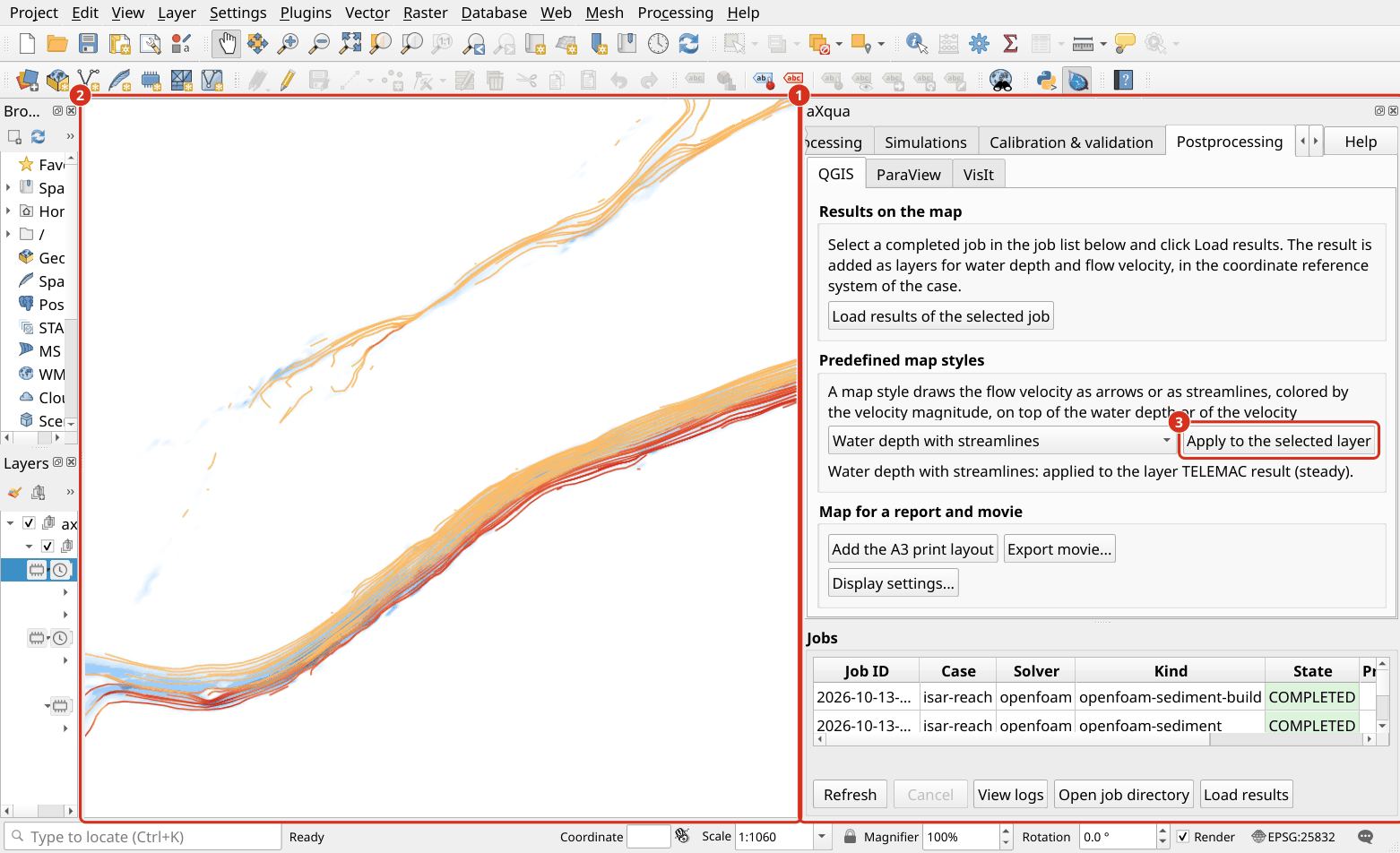
The aXqua panel in QGIS. (1) The panel with its tabs, the button Help and the job list. (2) The map of QGIS, here with the result of a steady simulation in the map style Water depth with streamlines (QGIS map generation). (3) Every function of aXqua is a button on one of the tabs.